Writing a score#
Kanadeeru's main screen is the score スコア: a staff, one bar at a time, on which you put notes with the pointer. This chapter goes through everything on it, from the first note to the tempo curve. Getting started has a short first song to try.
The screen#
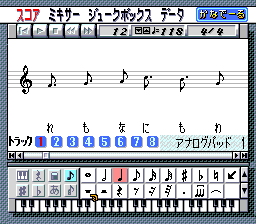 12345678910111213141516
- 1 Tabs スコア ミキサー ジュークボックス データ Score opens the score menu; Mixer, Jukebox and Data their screens
- 2 Kanadeeru button かなでーる does nothing
- 3 Transport to the start, play, stop, back, forward
- 4 Bar number the bar shown, 1 to 128
- 5 Tempo icons slower, faster
- 6 Tempo ♩= the song's tempo in beats a minute
- 7 Time signature set in Initial Settings
- 8 Staff one bar of the track shown: click to put a note down
- 9 Lyrics the song's one line, 32 places a bar
- 10 Track buttons トラック the lit one is shown
- 11 Instrument アナログパッド 1 the track's instrument: click to change it
- 12 Scroll bar through the 128 bars
- 13 Tools keyboard input, rest, eraser, note; ♯, ♭, lyrics, chords
- 14 Palette two of its six rows: notes and rests, marks, signs
- 15 Palette arrows ▲ ▼ a row up or down
- 16 Keyboard sounds a note; with keyboard input, writes one
The staff shows one bar of one track. Above it, the toolbar shows which bar it is, the song's tempo and its time signature. Below it are the eight track buttons and the shown track's instrument. At the bottom are the tools, the palette and a piano keyboard. Each is described below.
Bars and tracks#
Bars#
A song has 128 bars, and every track has all 128: bar 12 of track 1 plays with bar 12 of every other track. Move through them:
- L and R, a bar back or on;
- the scroll bar's arrows: ◀ and ▶ a bar back or on, |◀ and ▶| to the first or the last bar.
The bar number in the toolbar stops at 128. The time signature sets how much a bar holds (4/4: a whole note's worth). Kanadeeru refuses a note that won't fit in what is left of the bar. It does let a bar be left short: a bar of 4/4 can hold three and a half beats.
Tracks#
Eight tracks トラック play together, each on one of the console's eight sound channels. Click a track's button to show it; the lit button is the one shown, and everything you write goes into it. Each track has:
- an instrument, named at the right of the track buttons. Click the name to open Instrument Select がっきのせんたく: 44 instruments and the drum kit, 14 to a page, read column by column. Previous Page まえページ and Next Page つぎページ turn the pages; click an instrument, then OK じっこう. Instruments and the mixer lets you hear each one;
- a clef, treble or bass, set when the song is started (Initial Settings);
- a volume, a pan and echo, set on the Mixer (Instruments and the mixer).
A track holds up to 895 notes and rests. With the drum kit, each note on the staff is a drum rather than a pitch.
The palette#
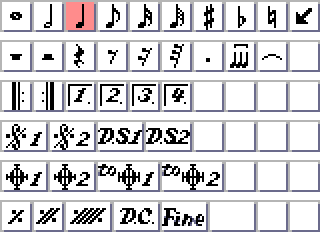
The palette shows two of its six rows at a time. Its ▲ and ▼ at the right move it a row at a time. Click a cell to choose it; the chosen cell is lit in red.
| Row | Cells | Use them for |
|---|---|---|
| 1 | Whole, half, quarter, eighth, 16th and 32nd notes; ♯ ♭ ♮; the arrow ↙ | Notes, and the accidental the next notes get. The arrow switches keyboard input on and off (below) |
| 2 | Whole to 32nd rests; the dot; the triplet bracket; the slur arc | Rests, and the three marks that change the notes you put down next |
| 3 | ‖: :‖; the endings 1. 2. 3. 4. | Repeats and their endings |
| 4 | 𝄋1, 𝄋2, D.S.1, D.S.2 | Two segni, and the D.S. that goes back to each |
| 5 | ⊕1, ⊕2, to ⊕1, to ⊕2 | Two codas, and the jumps to them |
| 6 | The 1-, 2- and 4-bar repeat signs; D.C.; Fine | Bars that repeat the bars before them; back to the start; the end |
Notes and rests#
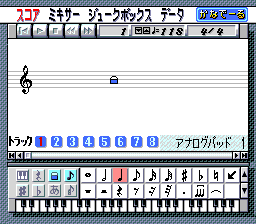
To write a note: click its value in the palette's first row, then click on the staff at the note's height. The note goes in at the place you click among the bar's notes: click to the right of the last note to add one at the end, or between two notes to put one in between, and the later notes move on. Over the staff, the pointer is drawn as the note it will put down, in blue. Each note sounds as it goes in.
Rests are the same, from the second row: the height you click at doesn't matter.
| Value | Beats (♩ = 1) | In a 4/4 bar | Dotted |
|---|---|---|---|
| Whole note or rest | 4 | 1 | 6 beats |
| Half | 2 | 2 | 3 |
| Quarter | 1 | 4 | 1½ |
| Eighth | ½ | 8 | ¾ |
| 16th | ¼ | 16 | ⅜ |
| 32nd | ⅛ | 32 | Not allowed |
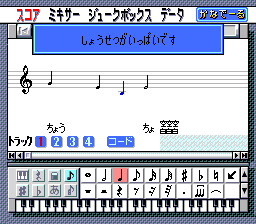
If the note or rest doesn't fit in what is left of the bar, it is refused, and the banner says "the bar is full" しょうせつがいっぱいです. Shorten a note, or go on in the next bar. The same message comes when a track has all of its 895.
Dots, triplets and slurs#
Three cells in the second row change the notes you put down next. Each one stays lit, and applies to every note you write, until you click it again or choose another note value. So choose the value first, then the dot, triplet or slur.
- The dot (·) makes a note or rest half as long again: a dotted quarter is a quarter and an eighth. A dotted 32nd is refused ふてん32ぶはにゅうりょくできません.
- The triplet bracket (a bracket with a 3) writes triplets: three in the time of two, each note marked with a small 3. A triplet 32nd is refused 3れん32ぶはにゅうりょくできません.
- The slur (an arc) joins each note you write to the note before it, with an arc between the two. The second note is not struck again: the sound runs on from the first note into the second without a new attack. Between two notes of the same pitch, that makes one long note: a tie.
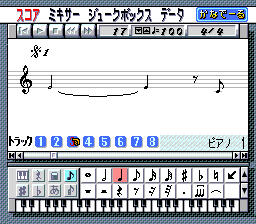
Dots, triplets and slurs can be combined. To change a note already written, delete it with the eraser and write it again.
Sharps, flats and naturals#
♯, ♭ and ♮ at the end of the first row put an accidental on the notes you write while one is lit: click ♯, then click on the staff, and the note is written with a sharp, a semitone higher. The key signature for the whole song is set in Initial Settings.
The tools#
The eight tool buttons left of the palette change what clicks do. The lit ones are on; the note tool is lit at the start.
| Tool | Where | What it does |
|---|---|---|
| Keyboard input (a keyboard) | Top row, 1st | A red line in the score marks where notes go; a click on a piano key puts a note there (Keyboard input). Click again to switch it off |
| Rest (𝄽) | Top row, 2nd | With keyboard input on, puts a rest of the chosen value at the red line |
| Eraser (a box) | Top row, 3rd | The pointer becomes a box; click a note or rest to delete it (The eraser). Click again to switch it off |
| Note (♪) | Top row, 4th | Notes put down with the pointer: the usual way, lit at the start |
| ♯ | Bottom row, 1st | With keyboard input, a black key is written as a sharp (C♯) |
| ♭ | Bottom row, 2nd | With keyboard input, a black key is written as a flat (D♭) |
| あ | Bottom row, 3rd | Lyrics: the palette becomes a keyboard of characters (Lyrics) |
| Chord | Bottom row, 4th | On the chord track only: the palette becomes the chord types (The chord track) |
Keyboard input#
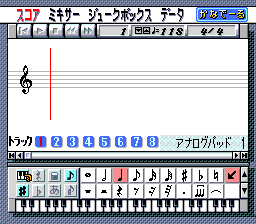
Click the keyboard tool (or the ↙ at the end of the palette's first row). A red line appears in the score: it marks where the next note goes. Click on the staff to move the line. Then click a key of the piano at the bottom: a note of the chosen value, at that pitch, goes in at the line.
- Black keys are written as sharps while the ♯ tool is lit, and as flats while the ♭ tool is lit.
- The rest tool puts a rest of the chosen value at the line.
- After a click on the piano, the pointer is held on the keyboard.
Click the keyboard tool again to go back to writing with the pointer.
The eraser#
Click the eraser tool (a box). The pointer becomes a small box. Click on a note's head, or a rest, to delete it: the notes after it move back to close the gap. Click the eraser again to turn it off.
Lyrics#
A song can have one line of lyrics, written under the staff. The line belongs to the song, not to a track. The jukebox shows it karaoke-style while the song plays.
Each bar has 32 places for characters, one for each 32nd note. A syllable is put at the place of the note it is sung on, and a word's further characters follow it in the places after.
- Click the あ tool. The palette becomes a keyboard of characters あいうえお…, and a red line appears in the score.
- Use the palette's ▲ ▼ to reach more characters.
- Click a character to write it at the red line. Or, with a character chosen, click under the note it belongs to, and it is written there.
- Click the note tool (♪) to go back to writing notes.
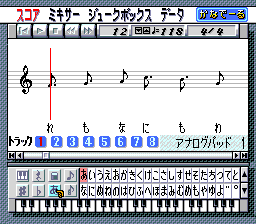
Lyrics can use hiragana and katakana, with the voiced and small kana, and the capital letters A–Z: ラビリンス sings FAKE and REALITY among its Japanese. There are no kanji and no small Latin letters. Some samples put a small CLR mark at the end of a phrase; it appears to clear the lyric line in the jukebox's show.
Signs and repeats#
The palette's rows 3 to 6 hold the signs of written music. Choose a sign, then click anywhere on the staff: the sign goes to its own place in the bar shown.
| Sign | Placed | Means |
|---|---|---|
‖: | At the bar's start | A repeat starts here |
:‖ | At the bar's end | Go back to the ‖: (or the song's start) and play the section again |
| Endings 1. 2. 3. 4. | Above the bar | An ending: the bars played on that pass of the repeat |
| 𝄋1, 𝄋2 | Above the bar | A segno: the place a D.S. goes back to |
| D.S.1, D.S.2 | At the bar's end | Dal segno: go back to 𝄋1 (or 𝄋2) and play on from there |
| ⊕1, ⊕2 | Above the bar | A coda: where the matching "to ⊕" jumps |
| to ⊕1, to ⊕2 | At the bar's end | After a D.S. or D.C., jump from here to ⊕1 (or ⊕2) |
| D.C. | At the bar's end | Da capo: go back to bar 1 |
| Fine | At the bar's end | After a D.S. or D.C., the song ends here |
| 1-bar repeat (𝄎) | The whole bar | This bar plays the bar before it |
| 2-bar repeat | The whole bar | Plays the two bars before it |
| 4-bar repeat | The whole bar | Plays the four bars before it |
Each bar has three places for signs: its start (a ‖: or a :‖), above it (an ending, a segno or a coda), and its end (a D.S., D.C., "to ⊕" or Fine). Each place holds one sign. A new sign in a place replaces the old one: a segno put on a bar with a first-ending bracket takes the bracket's place. Signs belong to the bar, so they apply to all eight tracks.
The 1-, 2- and 4-bar repeat signs are different: they replace the bar's notes on the track shown. The bar then plays the bar, or the two or four bars, before it.
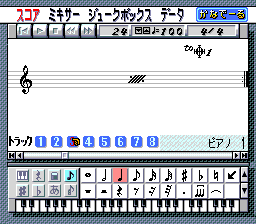
When the song plays, every sign is followed. Kanadeeru writes the repeats out in full before it plays: ダイヤモンド's 57 bars play as 75. The two numbered segni and codas let a song use the road-map twice:
The chord track#
A song can have a chord track in place of track 5. Choose 1234コード in Initial Settings: the track buttons then read 1 2 3 4 コード, and tracks 6 to 8 are no longer offered. The sample チョウチョ is written this way.
To write a chord: show the chord track, and click the chord tool. The palette becomes the twelve chord types. Click one, then click on the staff at the height of the chord's root. The chord goes in, and its name (the root's letter and the type) is written under the staff.
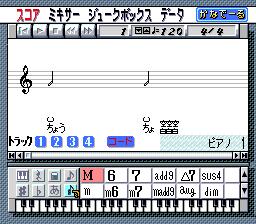
| Top row | Chord | Bottom row | Chord |
|---|---|---|---|
| M | Major (C) | m | Minor (Cm) |
| 6 | Major sixth (C6) | m6 | Minor sixth (Cm6) |
| 7 | Seventh (C7) | m7 | Minor seventh (Cm7) |
| add9 | Major with an added ninth (Cadd9) | madd9 | Minor with an added ninth (Cmadd9) |
| △7 | Major seventh (C△7, Cmaj7) | aug | Augmented (Caug) |
| sus4 | Suspended fourth (Csus4) | dim | Diminished (Cdim) |
The chord tool works only on the chord track; elsewhere the banner says "chord entry can't be used" コードにゅうりょくはつかえません. Bars can't be copied between the chord track and tracks 1 to 4.
The tempo#
The song's tempo is in the toolbar, as ♩= beats a minute. The two small icons left of it slow the song down (left) and speed it up (right). A click nudges it; held down, an icon runs it along about 15 beats a minute each second. It goes from about 31 to 200. The new tempo applies at once, even while the song plays. A new song starts at ♩=120.
For a tempo that changes within the song (a slowing at the end, a pause), use the tempo curve.
Initial Settings#
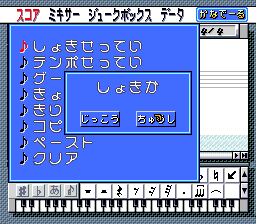
Initial Settings しょきせってい starts a new song. Open it from the Score tab's menu. If a song is in the score, Kanadeeru first asks whether to initialise しょきか: OK じっこう clears the score, and Cancel ちゅうし leaves it alone. Save the song first if you want to keep it.
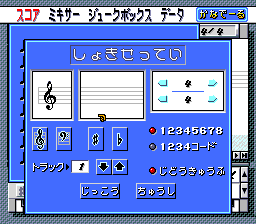 12345678910
- 1 Clef the clef of the track chosen below
- 2 Key signature the sharps or flats set
- 3 Time signature ◀ ▶ beside the top number: beats a bar; beside the bottom: the beat
- 4 Treble and bass clef ト音 ヘ音 for the track chosen below
- 5 Sharp, flat ♯ ♭ a sharp or a flat more in the key
- 6 Track トラック ▼ ▲ choose the track the clef buttons set
- 7 8 tracks 12345678 eight ordinary tracks
- 8 Chord 1234コード track 5 becomes the chord track
- 9 Automatic Rests じどうきゅうふ on or off
- 10 OK, Cancel じっこう ちゅうし OK starts the new song
| Control | Sets | Start |
|---|---|---|
| The three boxes along the top | Nothing: they show the clef, the key signature and the time signature as set | |
| Treble clef, bass clef ト音, ヘ音 | The clef of the track shown beside Track | |
| Track トラック and its ▼ ▲ | Which track the clef buttons set | 1 |
| ♯, ♭ | The key signature: each click a sharp or a flat more | None (C major or A minor) |
| Time signature: ◀ ▶ beside the top number | Beats a bar: 1–2 over 2, 1–4 over 4, 1–8 over 8. It wraps round | 4 |
| Time signature: ◀ ▶ beside the bottom number | The beat: /2, /4 or /8 | /4 |
| 12345678 or 1234コード | Eight ordinary tracks, or four and a chord track in place of track 5 (below) | 12345678 |
| Automatic Rests じどうきゅうふ | A switch; what it fills in was not studied | On |
| OK, Cancel じっこう, ちゅうし | Start the new song with these settings, or leave everything as it was |
Fourteen time signatures can be set: 1/2 and 2/2; 1/4 to 4/4; 1/8 to 8/8. Changing the bottom number cuts the top one to what the new beat allows: from 4/4, ◀ beside the bottom number gives 2/2.
The score menu#
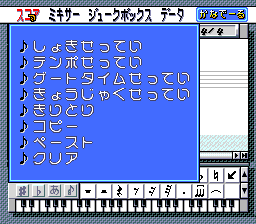
Click Score スコア in the top bar, while the score is showing, for its menu of eight items.
| Item | What it does |
|---|---|
| Initial Settings しょきせってい | Starts a new song: the clefs, key, time signature and track layout (above). Asks first if a song is in the score |
| Tempo Settings テンポせってい | Opens the tempo curve panel under the staff (below) |
| Gate Time Settings ゲートタイムせってい | Opens the gate time panel: a value for each note |
| Dynamics Settings きょうじゃくせってい | Opens the dynamics panel: a value for each note |
| Cut きりとり | Keeps this bar, or bars n to m, for Paste, and removes them from the score |
| Copy コピー | Keeps this bar, or bars n to m, for Paste |
| Paste ペースト | Puts the kept bars into the score, after a question |
| Clear クリア | Empties this bar, or bars n to m |
Cut, Copy, Paste and Clear#
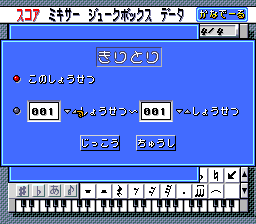
Cut, Copy and Clear open the same window. Choose this bar このしょうせつ, or bars from n to m: set the two numbers with their ▼ ▲. Then OK or Cancel.
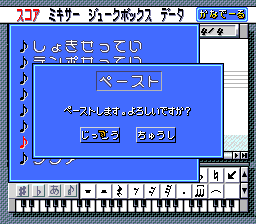
Paste asks first, "Paste: is that all right?" ペーストします。よろしいですか?; OK pastes.
The banner may answer "cannot copy" コピーできません, "cannot erase" しょうきょできません, "memory is full" メモリがいっぱいです or "there is no data" データがありません. Bars of the chord track and of tracks 1–4 can't be copied into each other.
The panels: tempo curve, gate time, dynamics#
Tempo Settings, Gate Time Settings and Dynamics Settings on the score menu each open a panel under the staff, for the bar shown. The panel draws one value as a red line from a centre line, or as a red bar for each note. Click in the panel to set a value: the higher you click, the larger.
| Panel | One value for | Starts at | What the value means |
|---|---|---|---|
| Tempo curve テンポ | Eight a bar: each eighth note of a 4/4 bar | 032 | 032 is the song's tempo; each step up or down is 2 beats a minute faster or slower |
| Gate time ゲートタイム | Each note, drawn as a red bar | 063 | How long the note is held of its written length |
| Dynamics きょうじゃく | Each note, drawn as a red bar | 032 | How strongly the note is played |
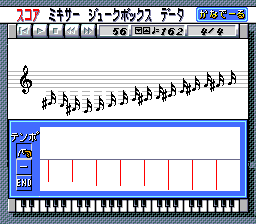
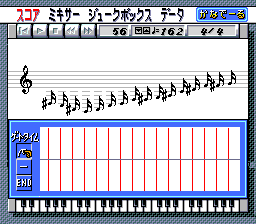
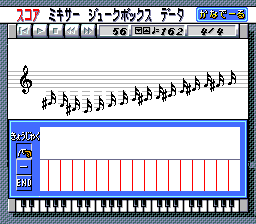
At the panel's left, under its name and an icon, are two buttons:
- ー opens the panel's settings window: Tempo Settings, Gate Time Settings or Dynamics Settings テンポせってい / ゲートタイムせってい / きょうじゃくせってい. It sets one value せっていち over bars n to m, or over all bars ぜんしょうせつ. Set the numbers with their ▼ ▲, then OK or Cancel.
- END closes the panel.
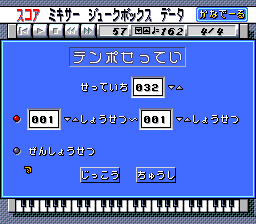
The tempo curve#
Every bar has eight tempo values, one for each eighth note of a 4/4 bar, on top of the song's tempo. 032 is the song's own tempo. Each step above makes it 2 beats a minute faster, and each step below 2 slower. ダイヤモンド, at ♩=162, ends with a ritardando this way: its last two bars fall from 136 to 112, and from 116 to 100.
Gate time and dynamics#
Each note carries a gate time and a dynamic, set in these two panels or, for a range of bars, in their windows. The windows start at gate time 063 and dynamic 032, the values nearly every note of the samples has. The panel shows a red bar for each note of the bar, on the track shown.
- Gate time is how long a note is held, out of its written length: a lower value makes it shorter and more detached.
- Dynamics is how strongly it is played: louder or softer.
Playing the song#
Click play (▶) in the toolbar:
- Kanadeeru first prepares the whole song: it writes the score out, with every repeat and D.S. in full, in the sound driver's own format. That takes a second or two before the first note.
- It always starts at bar 1, whatever bar is shown. The score stays on the bar shown while the song plays.
- It plays the song once, then stops. Stop (■) stops it sooner.
- The Mixer acts live while a song plays: move a fader and you hear it at once (Instruments and the mixer).
- An empty score can't be played: "no notes have been entered" おんぷがにゅうりょくされていません.
The toolbar's first button goes to the song's start; ◀◀ and ▶▶ are back and forward.
Messages on the score#
The program's messages appear in a banner over the top of the screen. The ones you may meet while writing:
| Message | Means | When |
|---|---|---|
| しょうせつがいっぱいです | The bar is full | A note or rest that won't fit in the bar; also when the track holds its 895 |
| ふてん32ぶはにゅうりょくできません | A dotted 32nd can't be entered | The dot with a 32nd |
| 3れん32ぶはにゅうりょくできません | A triplet 32nd can't be entered | The triplet with a 32nd |
| コードにゅうりょくはつかえません | Chord entry can't be used | The chord tool outside the chord track |
| おんぷがにゅうりょくされていません | No notes have been entered | With an empty score: playing it, saving it, or opening a panel |
| 1しょうせつめにおんぷやきゅうふをにゅうりょくしてください | Put a note or rest in bar 1 | |
| えんそうできません | Cannot play | |
| へんしゅうできません | Cannot edit | |
| コピーできません | Cannot copy | |
| しょうきょできません | Cannot erase | |
| メモリがいっぱいです | Memory is full | |
| データがありません | There is no data | |
| コードトラックのデータを 1〜4トラックにはコピーできません | The chord track's bars can't be copied to tracks 1–4 | |
| 1〜4トラックのデータをコードトラックにはコピーできません | Bars of tracks 1–4 can't be copied to the chord track |
Limits and messages has all 45.
Fan-made reference material, one of the Eschaton Games Tsukuru guides. Not affiliated with the publishers of the titles it covers.